
Last updated: November 1, 2026.
When I was just starting to learn SEO, the first thing I tried to understand was how Google discovers a website.
The first concept: crawling
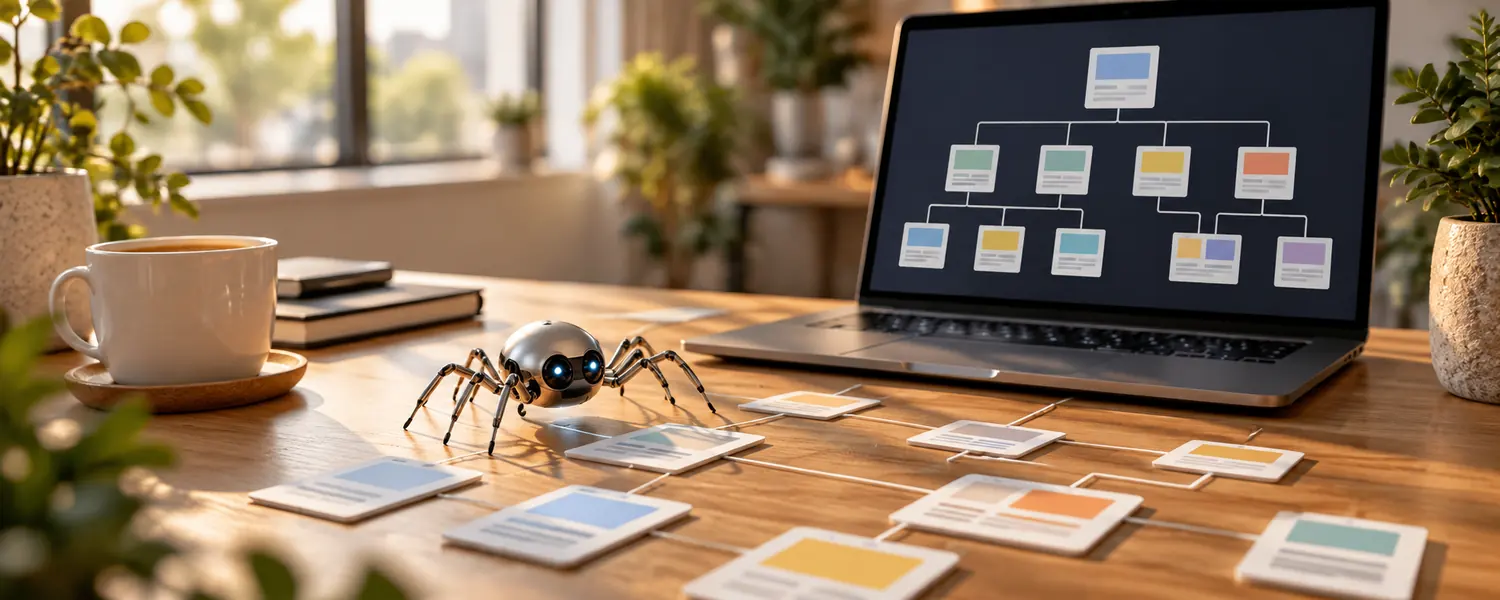
We tend to assume Google knows every page on the internet, but that’s not true. Bots we call “Googlebot” move around the web, follow links and discover new URLs. This process is called crawling.
A simple example: Googlebot lands on your homepage. On the homepage it sees these links:
- Category A
- Category B
- About Us
It goes into Category A. There it sees these links:
- Product 1
- Product 2
- Product 3
It visits those too. Roughly speaking, this is how Google starts moving through your site.
Where does Google find new pages?
There are a few ways Google learns about a new page:
- Internal links: A link to the new page from a page on your site that Google already knows. This is the most common way.
- External links: A link to you from another site. This is often how Google finds a brand-new site.
- XML sitemap: A file where you give Google a list of the pages on your site. You can submit it in Search Console.
You can think of a sitemap as saying “These pages exist, take a look.” It doesn’t guarantee that Google will crawl or index them. But it makes discovery easier, especially on new and large sites. Google also says it finds most new pages by following links and reading sitemaps (Google Search Central).
Your sitemap should only include pages you want to appear in Google, pages that load and don’t redirect. If you give an accurate last modified date (lastmod) for each page, Google can take it into account. It doesn’t use the priority and changefreq fields at all (Google). That’s why a sitemap that resets every date to today, every day, doesn’t help. If anything, it reduces trust.
If a page doesn’t get a link from anywhere on the site, it can be harder for Google to discover it. These are usually called orphan pages. That’s why site architecture and internal linking matter not just for helping users move around the site, but also for helping Google discover your pages. I cover internal linking in detail in Chapter 18.
Can Google crawl every page?
No. When Googlebot arrives at a site, it first looks at the robots.txt file. In this file you can list the areas you don’t want crawled. A single wrong line here can block crawling for a large part of the site.
How a link is written matters too. Google can only reliably follow links written with an <a href="…"> tag (Google). A menu or button that only opens with a JavaScript click may look like a link to the user but may not be a link to Google. Google also can’t see pages that only open after you log in.
Then there’s crawl frequency. Google doesn’t crawl every page equally often. It visits pages that are updated frequently and that it considers important more often, and pages that haven’t changed in a long time less often.
In my old training sessions, I used to explain this by comparing a news site with a company site that adds one piece of content a month. On the news site, new pages go up every day and Google visits very often. On the company site, there’s nothing that requires Google to come every day, so the visits become less frequent. Google also says it uses an algorithmic process to decide which sites to crawl, how often, and how many pages to fetch from each site (Google). I cover robots.txt, status codes and crawl budget in Chapter 23.
robots.txt doesn’t hide a page from Google
robots.txt is a simple text file that sits in your site’s root directory. For example, the file below tells all bots not to crawl the cart and internal search pages, and also shows where the sitemap is:
User-agent: *
Disallow: /cart/
Disallow: /search/

Sitemap: https://site.com/sitemap.xml
Above I said a single wrong line can block a large part of the site. The simplest example here is the line Disallow: /. A single slash blocks the entire site from being crawled.
There’s a point that often gets confused here: robots.txt blocks crawling, not indexing. Google is clear about this. robots.txt is not a way to keep a page out of Google. If other pages link to a page you’ve blocked, Google can index the URL without ever visiting the page. In that case the page shows up in the results without a description (Google).
If you don’t want a page to appear in Google, you need to use noindex or protect the page with a password. And for noindex to work, Google has to be able to crawl the page. So blocking a page with robots.txt and adding noindex to it at the same time doesn’t work. I cover noindex in the next chapter.
How does Googlebot see your site?
Today Google crawls the vast majority of sites with a Googlebot that behaves like a smartphone. This is called mobile-first indexing (Google).
In practice, this means content or links that aren’t on the mobile version of your site most likely don’t exist for Google either. Category links that appear in the desktop menu but are removed on mobile, tabs that don’t open on mobile, or product descriptions shown only on desktop can cause problems for this reason. When you check a page, you need to open it on your phone too.
Does your server affect crawling?
Yes. When Googlebot requests a page, your server responds with an HTTP status code:
| Code | Meaning | What does Google do? |
|---|---|---|
| 200 | The page exists | Reads the content |
| 301 | The page has moved permanently | Goes to the new address |
| 404 | Page not found | Removes it from the index over time |
| 5xx | Server error | Slows down crawling |
If the server returns 5xx errors frequently or responds very slowly, Google slows down crawling so it doesn’t overload the site (Google). If the errors go on for a long time, it can also drop pages it had already indexed. So hosting and the server side, even if they don’t look related to SEO at first glance, directly affect crawling. I cover site speed separately in Chapter 24.
Has Google crawled my page?
We don’t have to guess. We can check in three places:
- URL Inspection: When you enter a URL in Search Console, you can see when Google last crawled that page.
- Crawl stats: This report, under Settings in Search Console, shows how many requests Google sends to your site per day and how your server responds.
- Server logs: This is where you see in the most detail which page Googlebot visited and when. Very valuable on large sites.
When you look at server logs, you need to keep one thing in mind: not every request that calls itself Googlebot comes from Google. How a bot identifies itself (its user agent) is entirely up to the bot, and anyone can write “Googlebot.” Google recommends verifying the real Googlebot with a reverse DNS lookup or against the IP lists it publishes (Google).
Asking Google to recrawl a page
When you publish a new page or change an important one, you don’t have to wait for Google to come on its own. For a few URLs, you can use the Request indexing option in Search Console’s URL Inspection tool. For a large number of URLs, the right way is a sitemap (Google).
Google is clear about a few things here:
- There’s a quota for submitting individual URLs.
- Requesting a recrawl of the same URL over and over won’t get it crawled any faster.
- Crawling can take anywhere from a few days to a few weeks.
- Requesting a crawl doesn’t guarantee the page will make it into search results right away, or at all.
So this option is a “put it in the queue” request. Google still decides whether the page gets indexed. I talk about what that depends on in the next chapter, on indexing.
Crawling, indexing and ranking
Google crawling a page doesn’t mean that page will show up in Google. We need to separate three different stages here:
- Crawling: Has Google visited the page?
- Indexing: Has Google added the page to its index?
- Ranking: In what position will it show the page in searches?
When you’re learning SEO, I think not mixing up these three concepts is one of the most important things at the start. If a page isn’t showing up in Google, the first question should be “Has it been crawled?” Improving the content of a page that hasn’t been crawled won’t solve the problem.
Practice
- Does every important page get a link from at least one place on the site?
- Do you have an XML sitemap, and has it been submitted to Search Console?
- Open your robots.txt file (
yoursite.com/robots.txt). Are you accidentally blocking an important folder? - Are your menu and category links written with
<a href>? Are they all in the mobile menu too? - Check your 3 most important pages in URL Inspection. What’s the last crawl date?
- Is there a page you’ve blocked with robots.txt that you actually never want to appear in Google? Remove the block on that page and use noindex instead.
Contents · Next: Chapter 2: Indexing
This chapter was first published in Turkish on X (August 28, 2026).